Adding a New Ad Account to Looker Studio
How to make a new Facebook ad account appear in the STM connectors so it can be used in Looker Studio reports.
Admin access to Meta Business Suite
You need admin access to the STM Agency business portfolio in Meta Business Settings to assign assets to the system user.
Ad account added to STM Agency
The ad account must already be visible under the STM Agency business portfolio. If it's not, add it first via Business Settings → Ad Accounts → + Add.
-
Open Meta Business Settings
Go to business.facebook.com/settings and make sure you're in the STM Agency business portfolio.
-
Navigate to System Users
In the left sidebar, go to Users → System users and click on Conversions API System User.
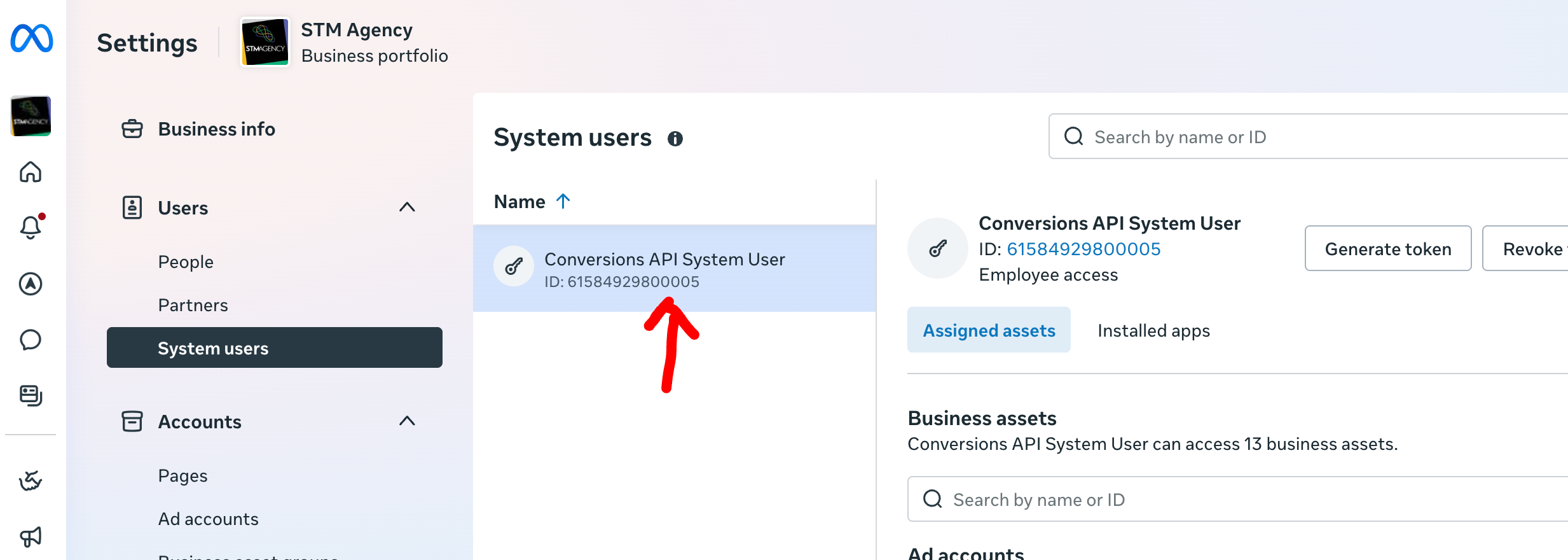 Click on "Conversions API System User" in the System users list.
 -
Assign the new ad account
Click the three-dot menu (…) next to the system user and select "Assign assets".
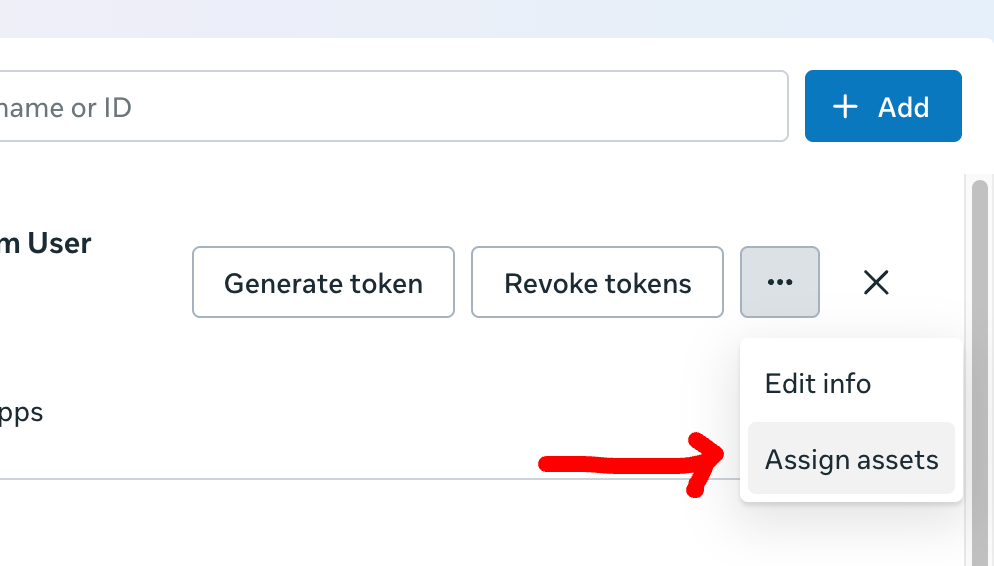 Click the three-dot menu, then "Assign assets".
 -
Select the ad account and set permissions
In the modal:
• Select Ad accounts from the left panel
• Search for the ad account by name or ID and tick it
• On the right, toggle on "View performance" under Partial access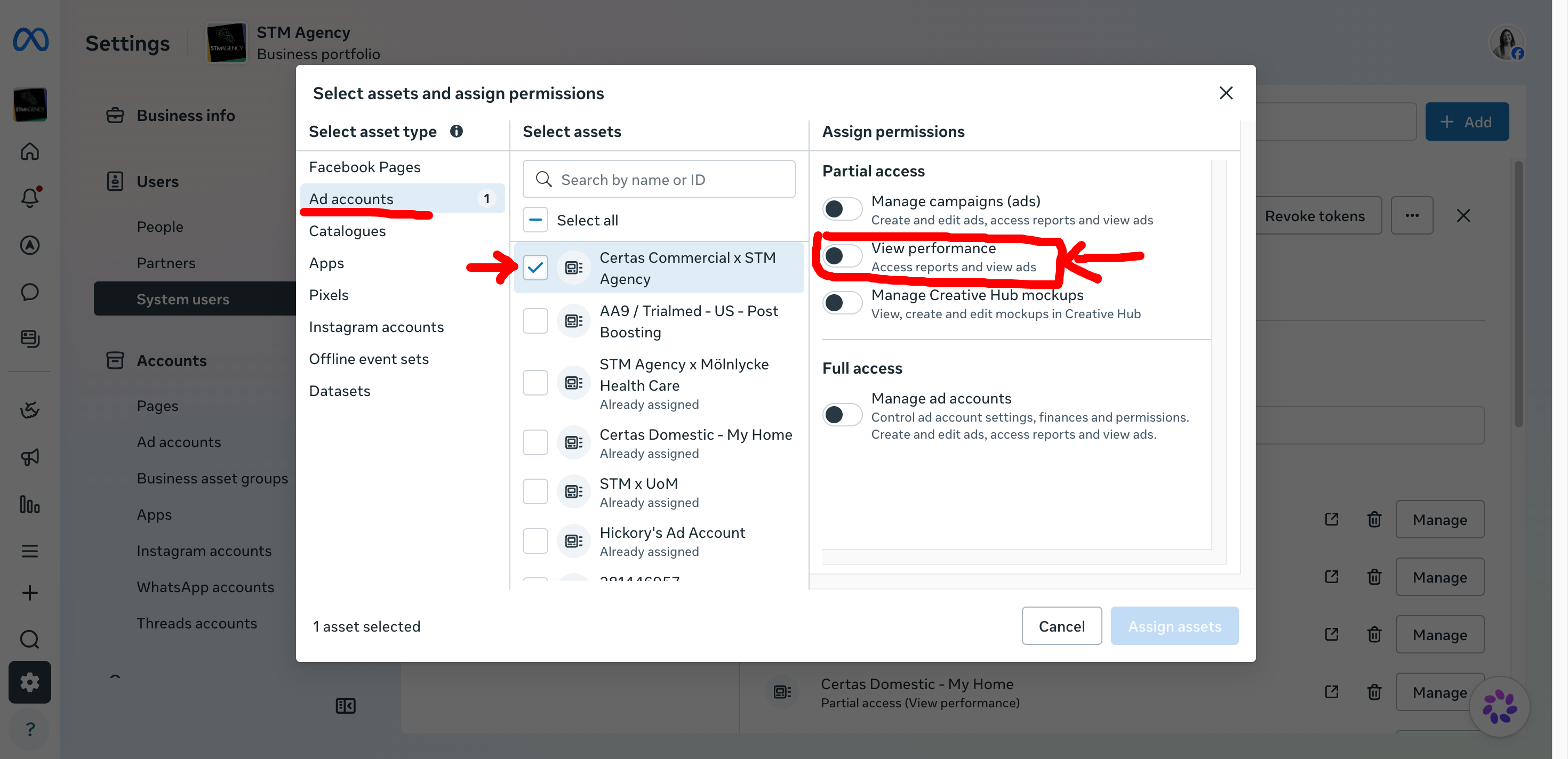 Select "Ad accounts" on the left, tick the account, and enable "View performance" on the right.
 -
Click "Assign assets" and verify in Looker
Click the blue "Assign assets" button. Go to Looker Studio and add a new Reach data source — the new ad account will appear in the Ad Account dropdown immediately.
- STM Facebook Reach — deduplicated Facebook reach for blending
- STM LinkedIn Reach — deduplicated LinkedIn reach & dwell time
Quick reference
Where: Meta Business Settings → System Users → Conversions API System User → Assign assets
What: Ad accounts → select the account → toggle "View performance"
Result: Account appears in all STM Looker Studio connector dropdowns immediately